
PER DIEM / DAILY JOBS
Watch this video or read the guide below if you need to hire an athletic trainer for per diem work (a few hours, days, or a recurring schedule).
LONG TERM / FULL TIME
If you need a long-term or full-time athletic trainer, complete this form.
We work with schools and private organizations nationwide to place athletic trainers in long-term roles.
Getting Started
It's free to post a job on Go4. Once your job is posted, it is marketed to our network of athletic trainers. We have over 24,000 across the country, and new ATs join daily.
When an organization hires an athletic trainer through Go4, we charge a service fee as part of the payment for the job. There are no contracts, minimum spending requirements, or fees to post a job. Give it a try - we promise it's easy and no strings attached!
>>New users, click here to start
>>Existing users, login here
Create an Account
Create a free account to start your job posting
.png?width=670&height=366&name=1%20(10).png)
Type in Your Organization Name, Website, and your Organization Type
.png?width=670&height=432&name=2%20(8).png)
Select how you plan on using Go4.
.png?width=670&height=497&name=3%20(7).png)
Select a setting for the job you are posting.
-
This should reflect the job's setting rather than your organization type.
.png?width=670&height=499&name=4%20(4).png)
Select the type of job you are posting
-1.png?width=670&height=547&name=5%20(1)-1.png)
Next, complete the job's Profile.
.png?width=670&height=447&name=6%20(1).png)
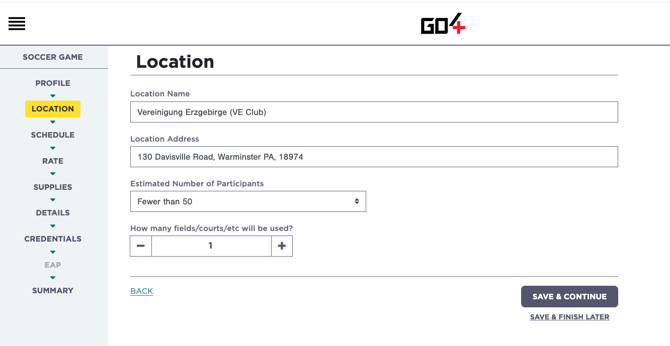
Next, complete the location information.
-
Type the name of a venue and select it from the list. Ensure the address is accurate—it will help market the job to local ATs and ensure the AT shows up at the right place.
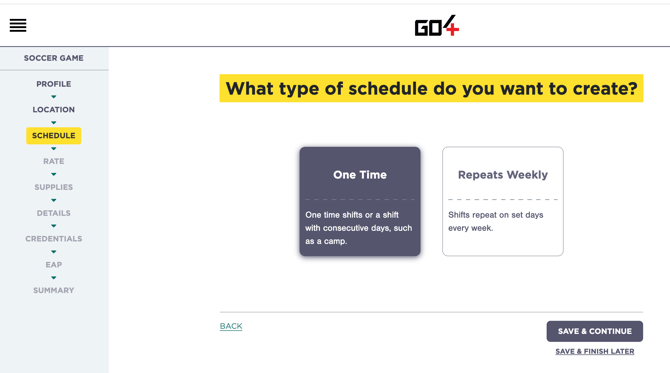
Configure the schedule.
-
Select One Time if one shift needs to be worked and doesn't repeat.
-
Select Repeats Weekly if the shift repeats, such as a practice every Monday for eight weeks.
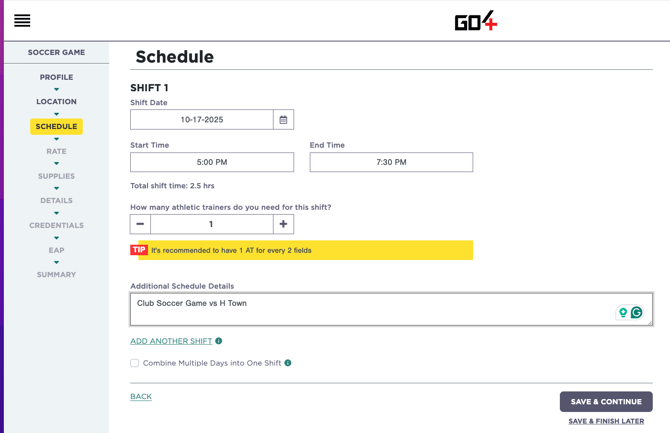
Add dates and times to the schedule.
-
From here, add additional shifts if needed.
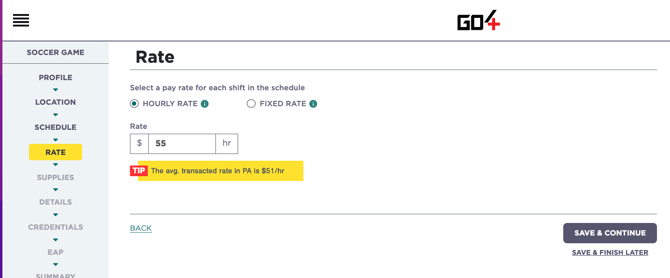
Select a pay rate.
-
Hourly Rate - the job will cost the [Hourly Rate] x [Hours Worked] + [Service Fee]
-
Flat Rate - the job will cost the [Flat Rate] + [Service Fee].
-
Consider the hourly rate when using a Flat Rate; ATs consider this when viewing a job.
-
Low Rate Warning
Before inputting a rate, Go4 will list the average transacted rate in the state of your job. Should you put in a rate below market, a pop-up will display, saying the following:
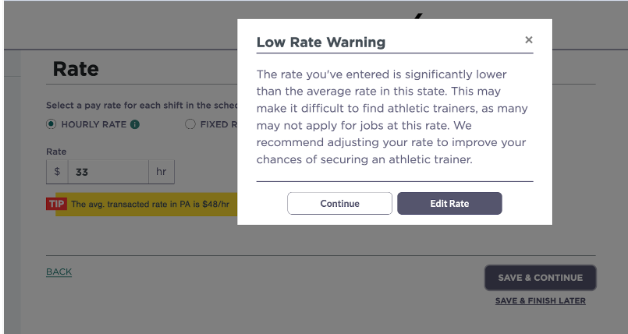
For more information on pay rates, click here.
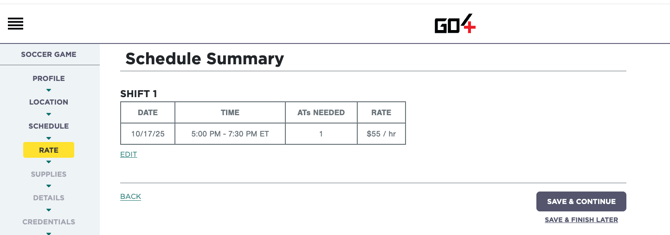
Double-check the date & time in the Schedule Summary.
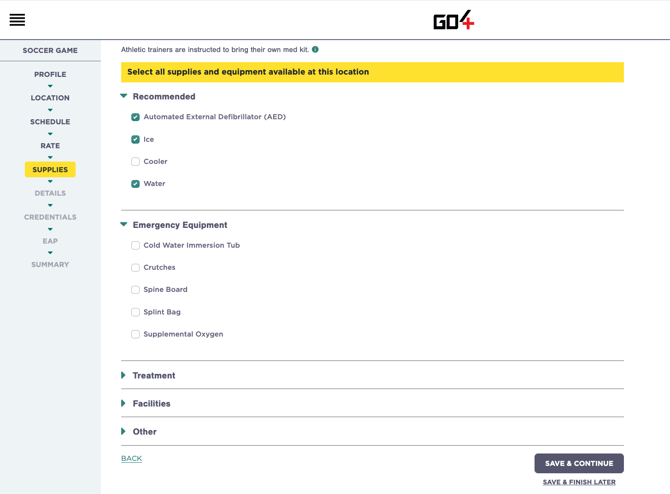
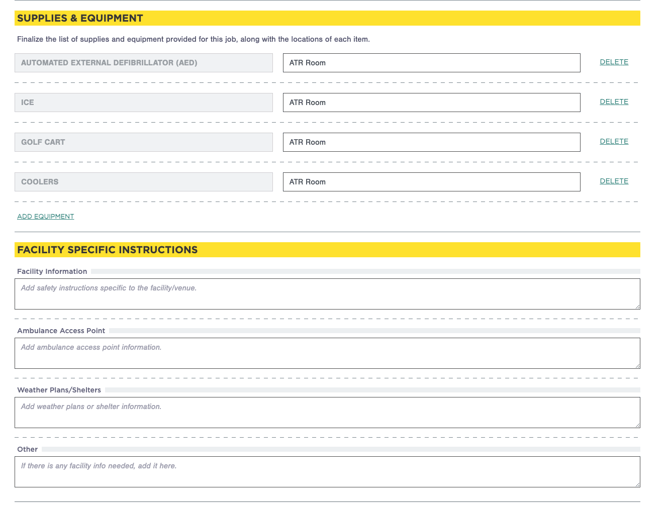
Select supplies & equipment that will be available on-site.
This checklist will be visible to athletic trainers when they view the job. ATs like to know what to expect; adding detail and providing supplies will entice applicants.
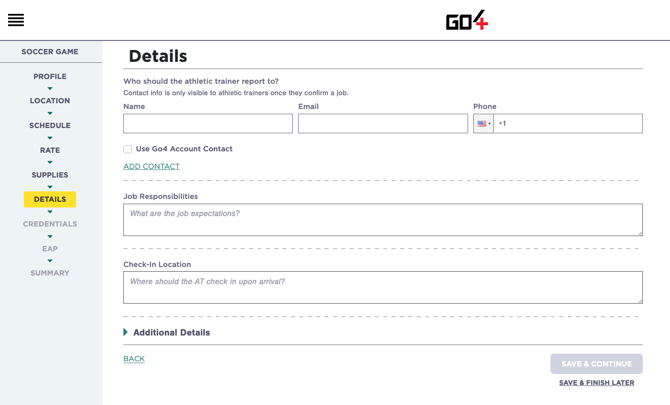
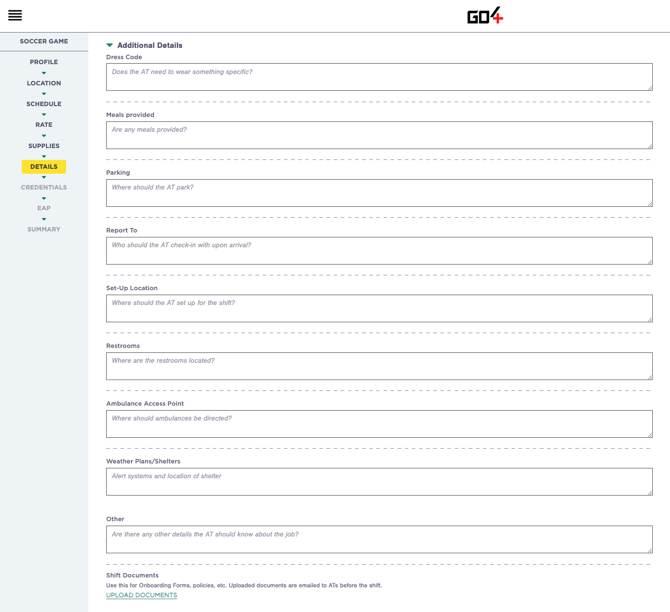
Add Details and Additional Details.
Details allows you to provide essential information about the job. This includes responsibilities, schedule details, and check-in location. By filling out this section thoroughly, you ensure that all Athletic Trainers are well-informed about the job they are applying for.
Add a Job Contact so the athletic trainer working the job can contact someone with questions or issues once they are confirmed to work.
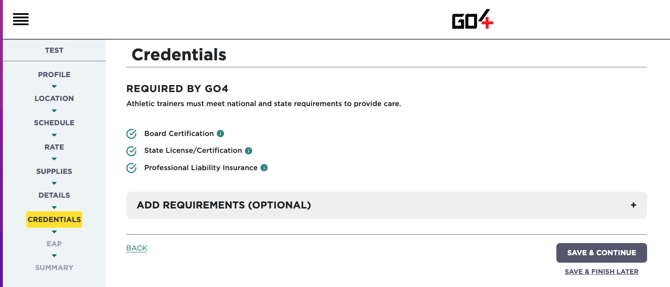
Option to add Additional Credentials
Athletic Trainers on Go4 are required to upload their National Certification, State License, and proof of Professional Liability Insurance. If any additional clearances or documents are needed to work your job, click Yes and add the document(s) name.
Athletic Trainers will be able to see this list when viewing the job. However, your organization is responsible for reviewing the athletic trainer's credentials before hiring them.
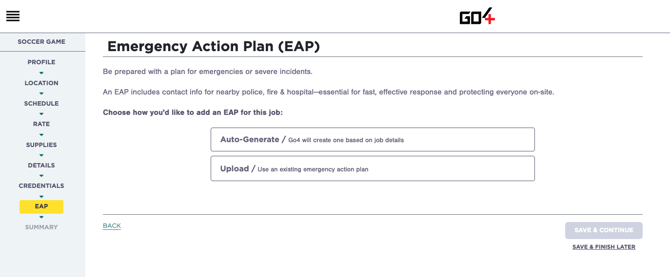
Add an Emergency Action Plan (EAP)
EAPs save lives. It's a document that helps prepare for a catastrophic injury or emergency. It should ensure that an emergency response is rapid, appropriate, controlled, and precise. EAPs should be reviewed by all staff on-site, including Athletic Trainers and all local emergency medical services. Click here to learn more.
Upload your own EAP or auto-generate one through the platform.
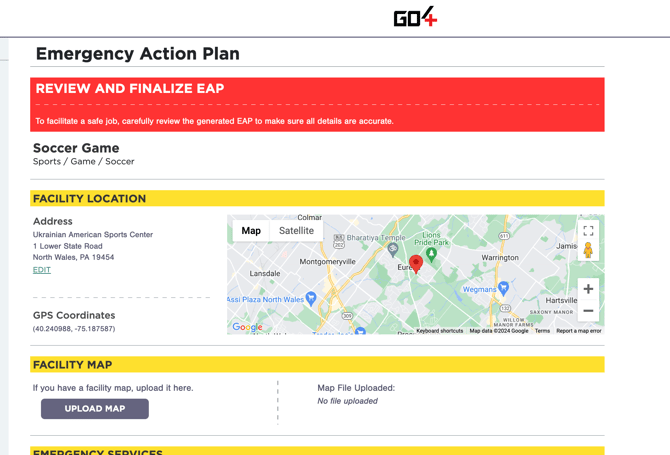
Emergency Services - Auto-generated EAPs populate the nearest Hospital, Police, & Fire; you can edit them.
Contact List - List personnel at the job's venue whom the athletic trainer needs to contact in an emergency.
Emergency Equipment - Items selected on the Supplies step will be listed here, and you can add more. It's important to add locations for critical equipment such as the AED.
Facility-Specific Instructions - Add safety information specific to the facility. This may include ambulance access points to each field or building, lightning-safe shelter instructions, inclement weather plans, etc.
Review & Post the Job
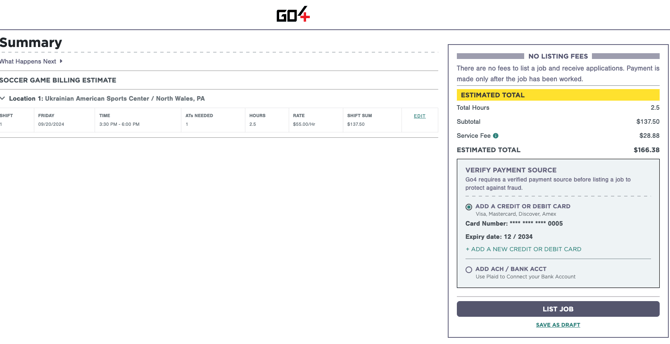
If you're ready to post the job, add a payment method and click POST!
-
To post a job, you must store a payment method. You are only charged for jobs that are worked. You are NOT charged to post a job or for unfilled jobs. We accept all major credit cards, and you can switch to ACH after you post your first job.
If you aren't ready to post the job, click SAVE AS DRAFT in the bottom right corner. This will save all of your work so you can come back and post at a later time.
Congrats! Here's what happens next...
Once a job is posted, it is marketed to athletic trainers. Most jobs receive an application within 48 hours of being posted. If you do not receive applications, we suggest boosting the rate. This is the #1 reason jobs go unfilled.
You will be notified by email daily if you have outstanding applications. Please feel free to log in anytime to review and accept applicants. Act fast - applications expire after seven days!
If you would like information on how to review and accept an application, please click here.